Recap
In this course, we learned first that structures allow us to describe data – for example, hockey cards, book listings, people, and so forth.
Structures contain both stored properties that hold individual pieces of data and computed properties that perform calculations with data. For example, a Circle structure can store the radius of a circle. What that information, the structure can report on, or compute, its diameter, area, and circumference.
A protocol defines one or more rules that a structure must follow.
Structures that conform to (follow the rules of) the View protocol must have a computed property named body that returns one and only one structure that also conforms to the View protocol.
However – and this is really important – the structure that the body property returns can itself contain another view.
Here is a short example:
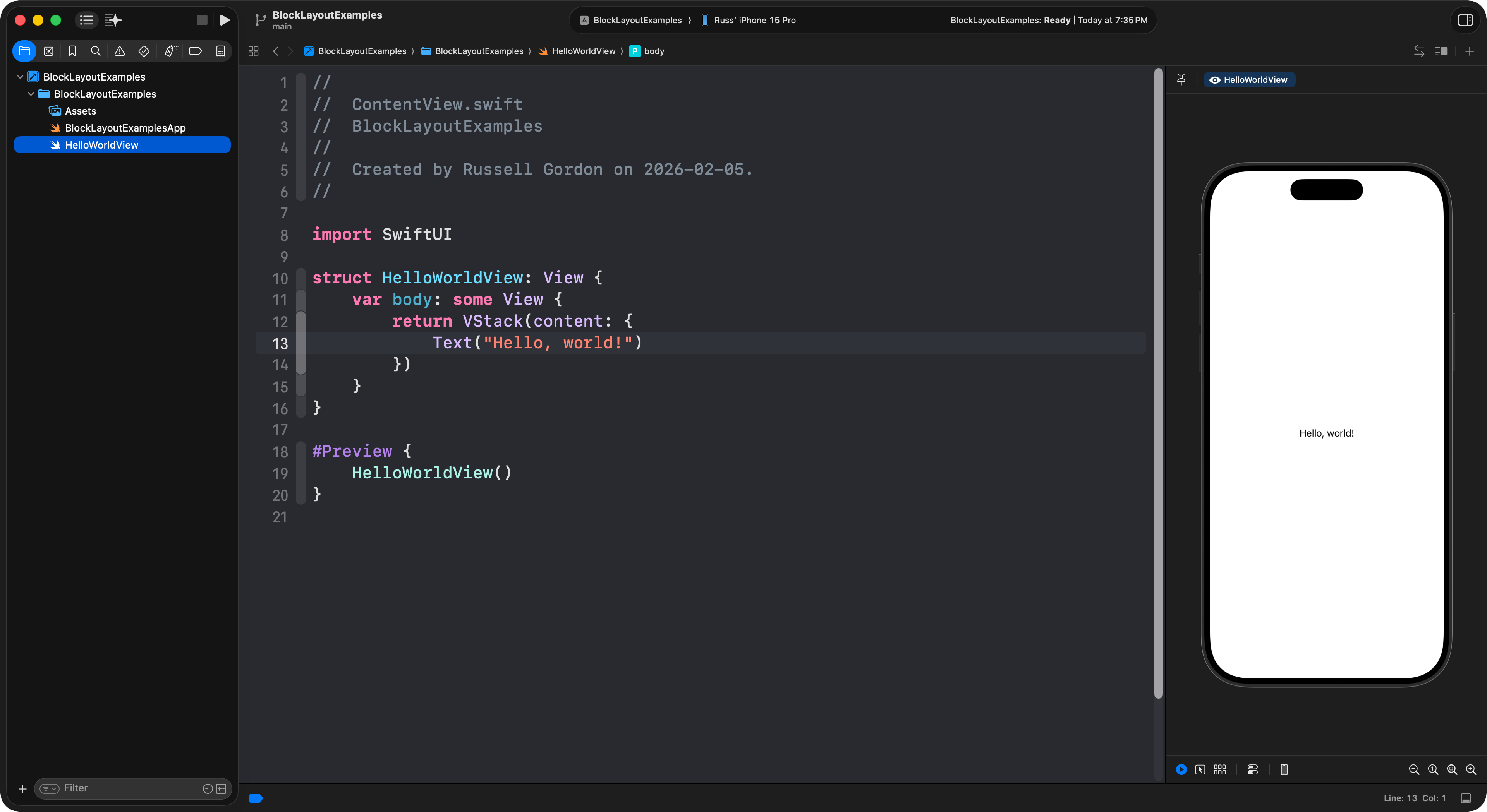
Above, the HelloWorldView structure conforms to the View protocol (line 10).
It follows the rules of that protocol by defining a body property (lines 11 to 15).
Specifically, an instance of the VStack structure is returned (lines 12 to 14).
The VStack structure has one parameter, or question that must be answered – what content do you want me to show?
We provide a block of code to answer that question – we ask the VStack to in turn show a Text structure that says "Hello, world!"
Using a structure that conforms to the View protocol to return more structures that conform to the View protocol is a bit like nesting Russian dolls:

In this way – using the SwiftUI framework and its long list of pre-defined structures for user-interface elements – we can describe very rich, functional, and attractive user interfaces for our apps.
Finally, the Swift programming language does allow us to streamline syntax. This short, 55-second, silent video shows how the code shown above can be simplified further:
Layout views
Recall the following:
VStack- Positions views contained inside of it vertically.
HStack- Positions views inside of it horizontally.
ZStack- Positions views inside of it using layers.
- The first view is the bottom layer.
- The final view is the top layer.
Push-out views
The Rectangle structure is a “push out” view – it is greedy and will take up as much space as possible:
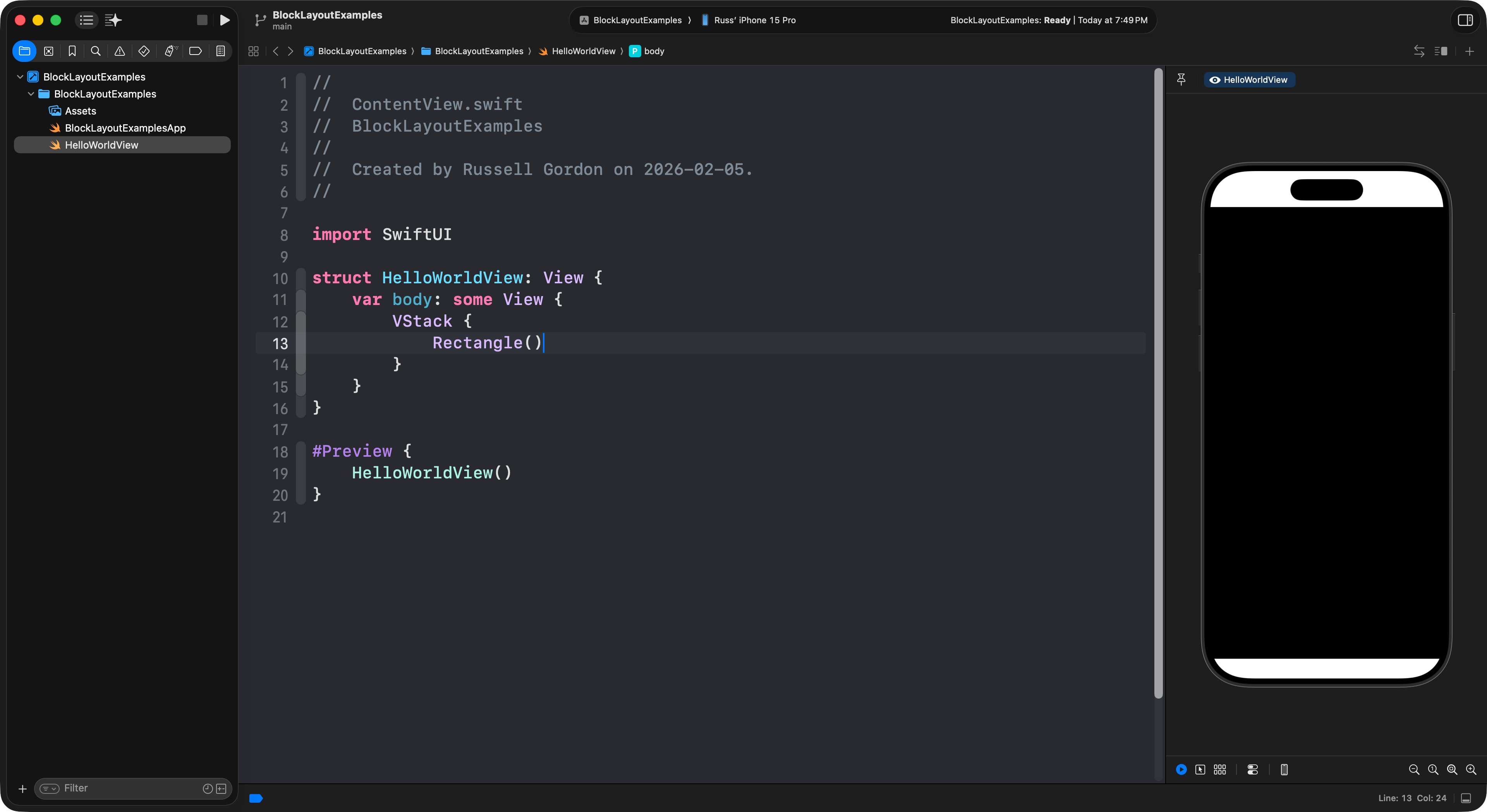
When we put two push-out views inside a stack, the stack will evenly divide its available space between the children views:
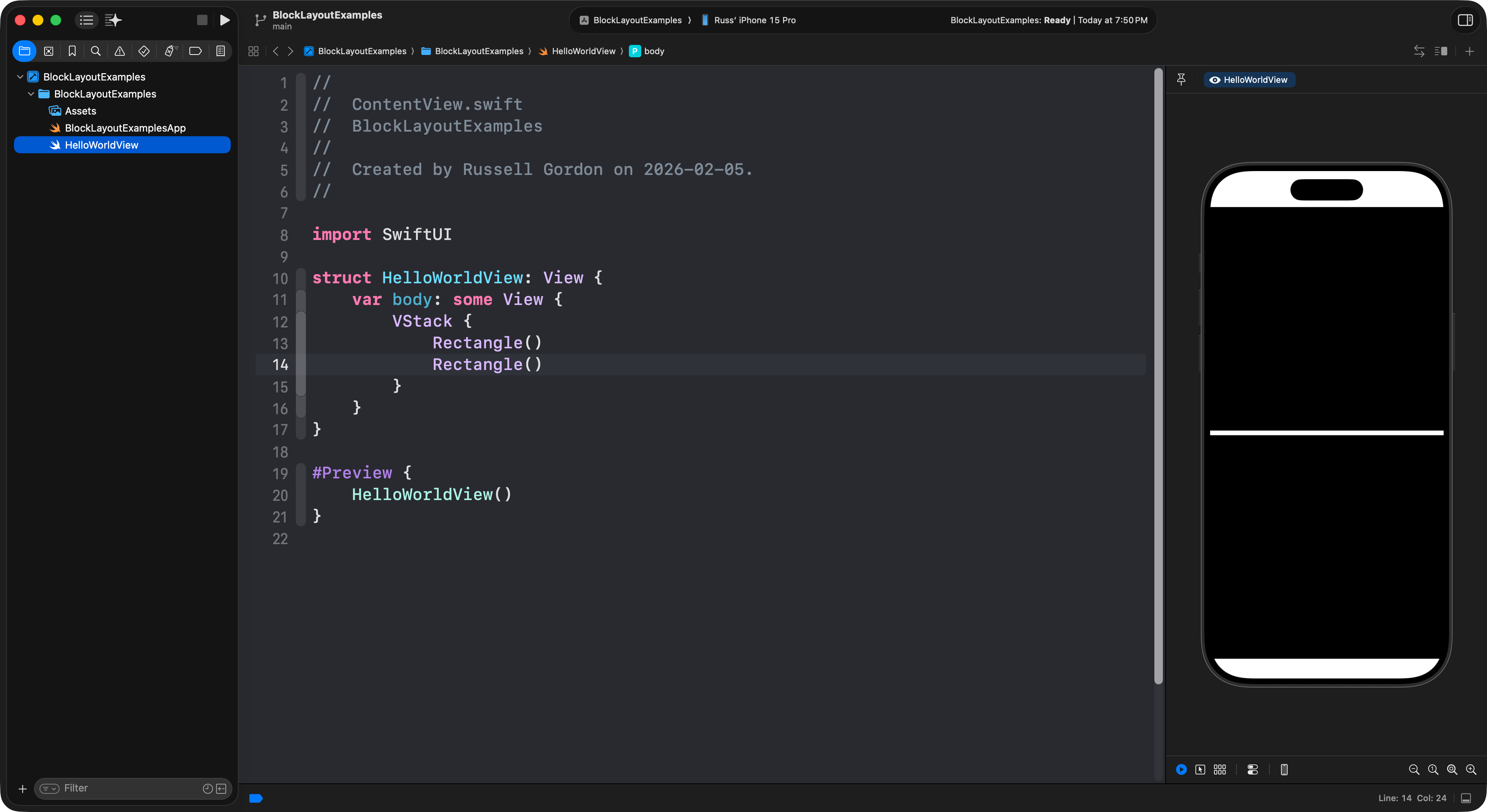
View modifiers allow us to change how a view presents itself.
Here, we use the .aspectRatio view modifier to tell the second rectangle to ensure it is always twice as wide as it is tall:
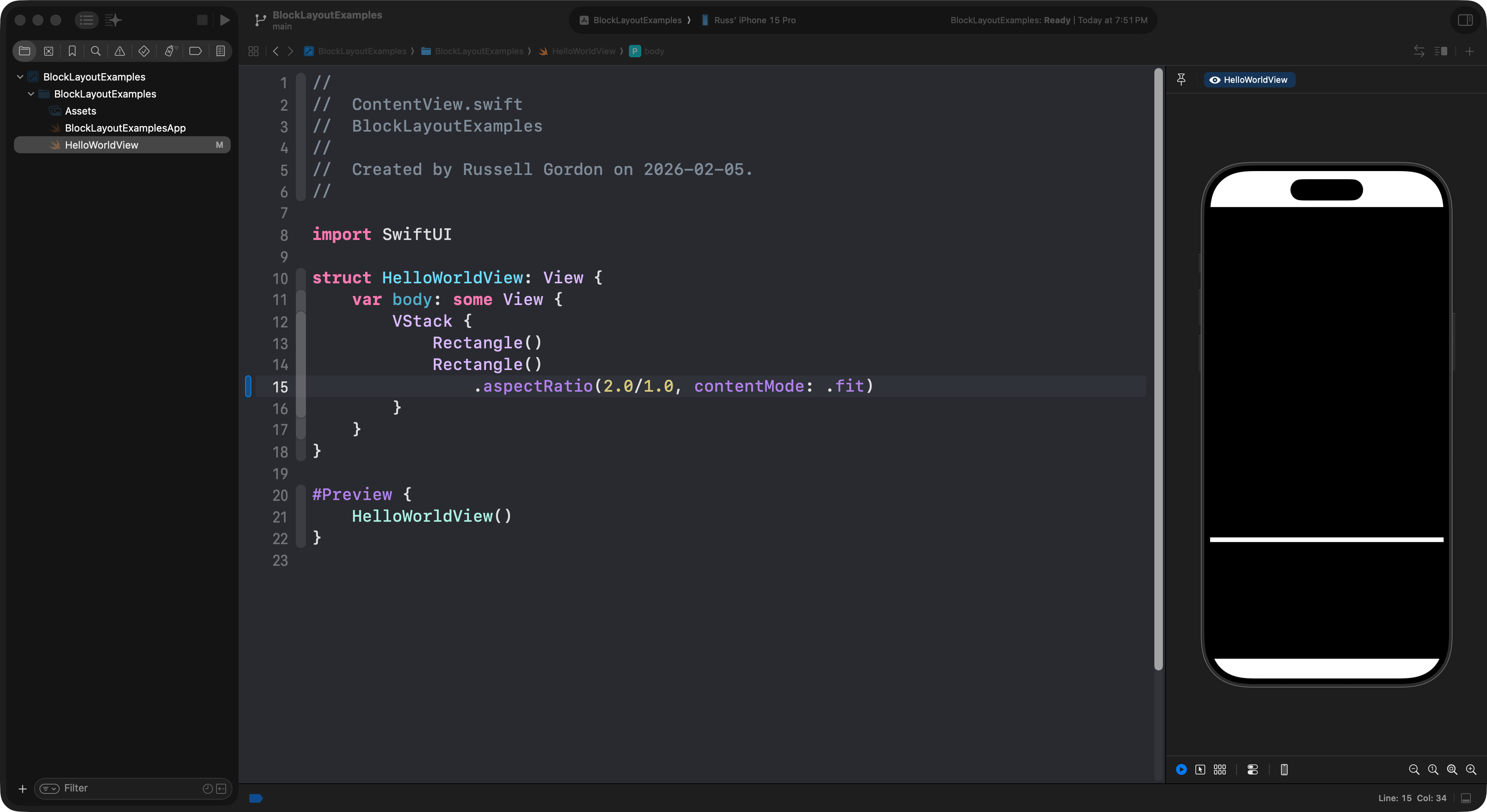
Another useful view modifier is .containerRelativeFrame.
Let’s say we wanted the rectangle below the text to take up of the available height of the screen.
We can use the .containerRelativeFrame view modifier to do this.
First, we’ll try this – it tells the rectangle to take up of the available vertical height:
For the count parameter (question) we are providing an argument of 5 (our answer) which tells the .containerRelativeFrame view modifier to divide the available vertical height up into 5 parts, and to take up 1 of those parts.
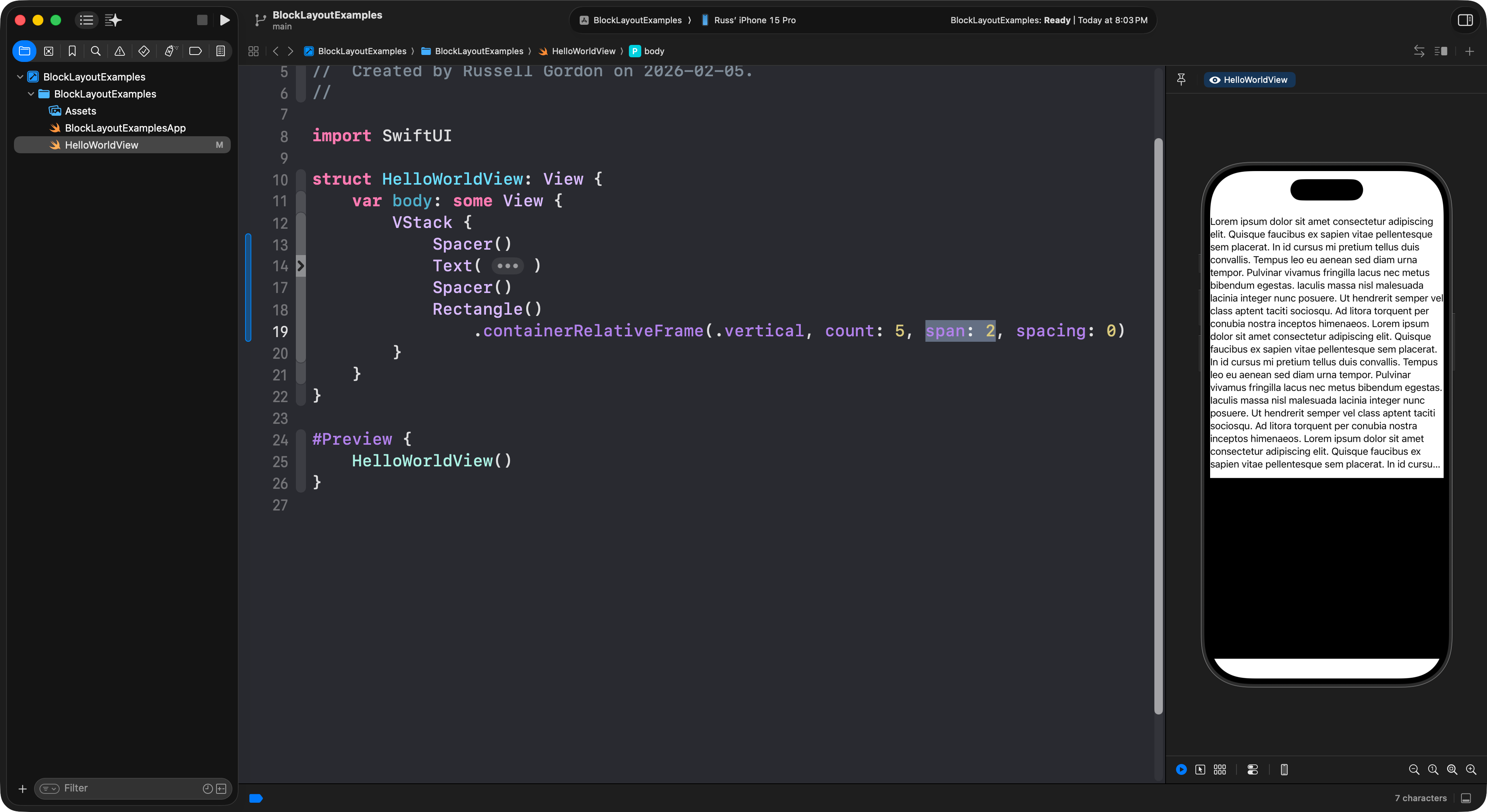
To get the rectangle to take up of the available height, we can add a span parameter and provide an argument of 2:
TIP
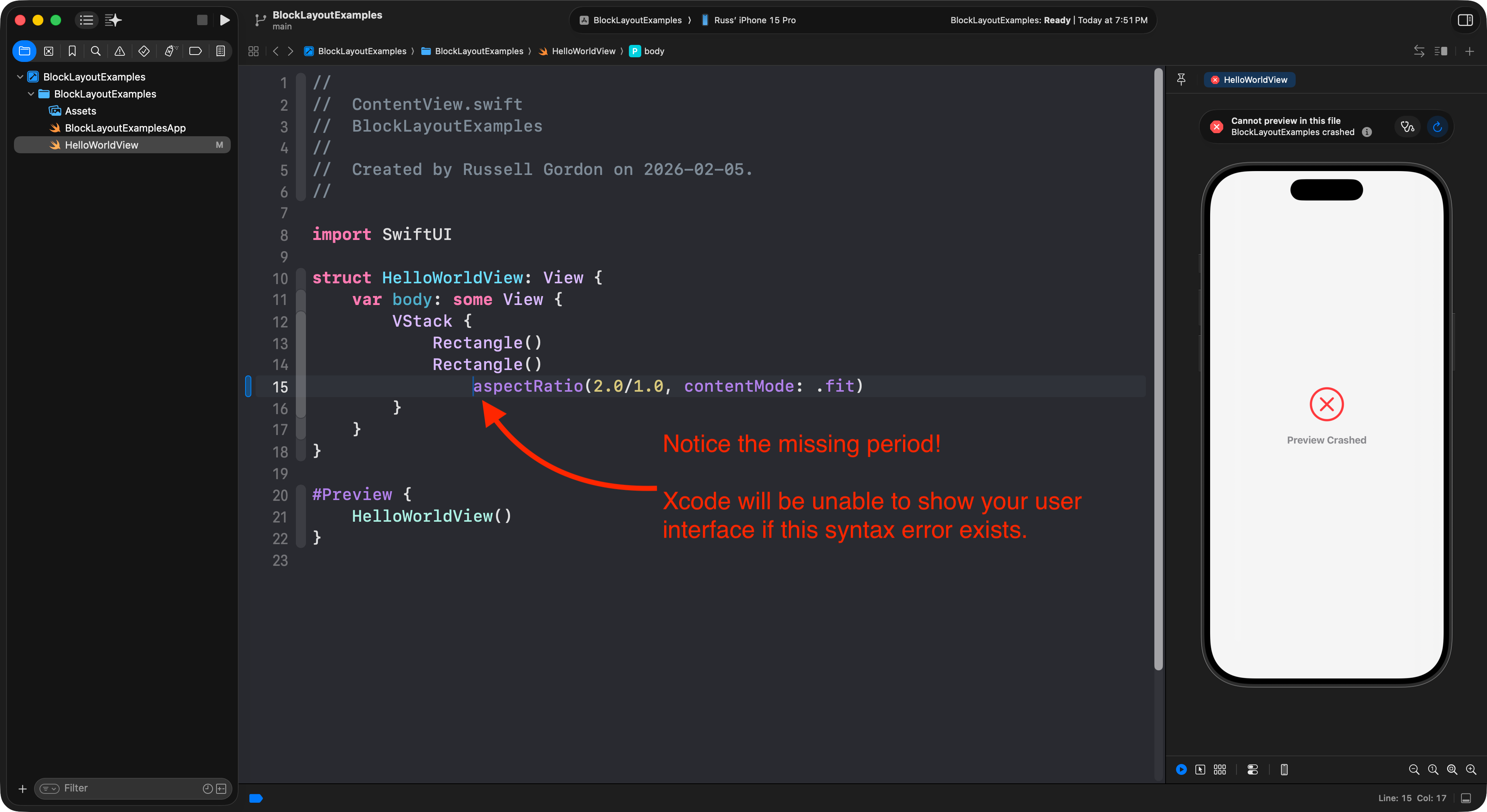
When adding a view modifier, don’t forget the
.that comes before it!Forgetting the
.character is a very common syntax error that is easy to make and very hard to spot.If you ever find that Xcode is struggling to present your user interface, double-check that you haven’t created a syntax error like this!
Pull-in views
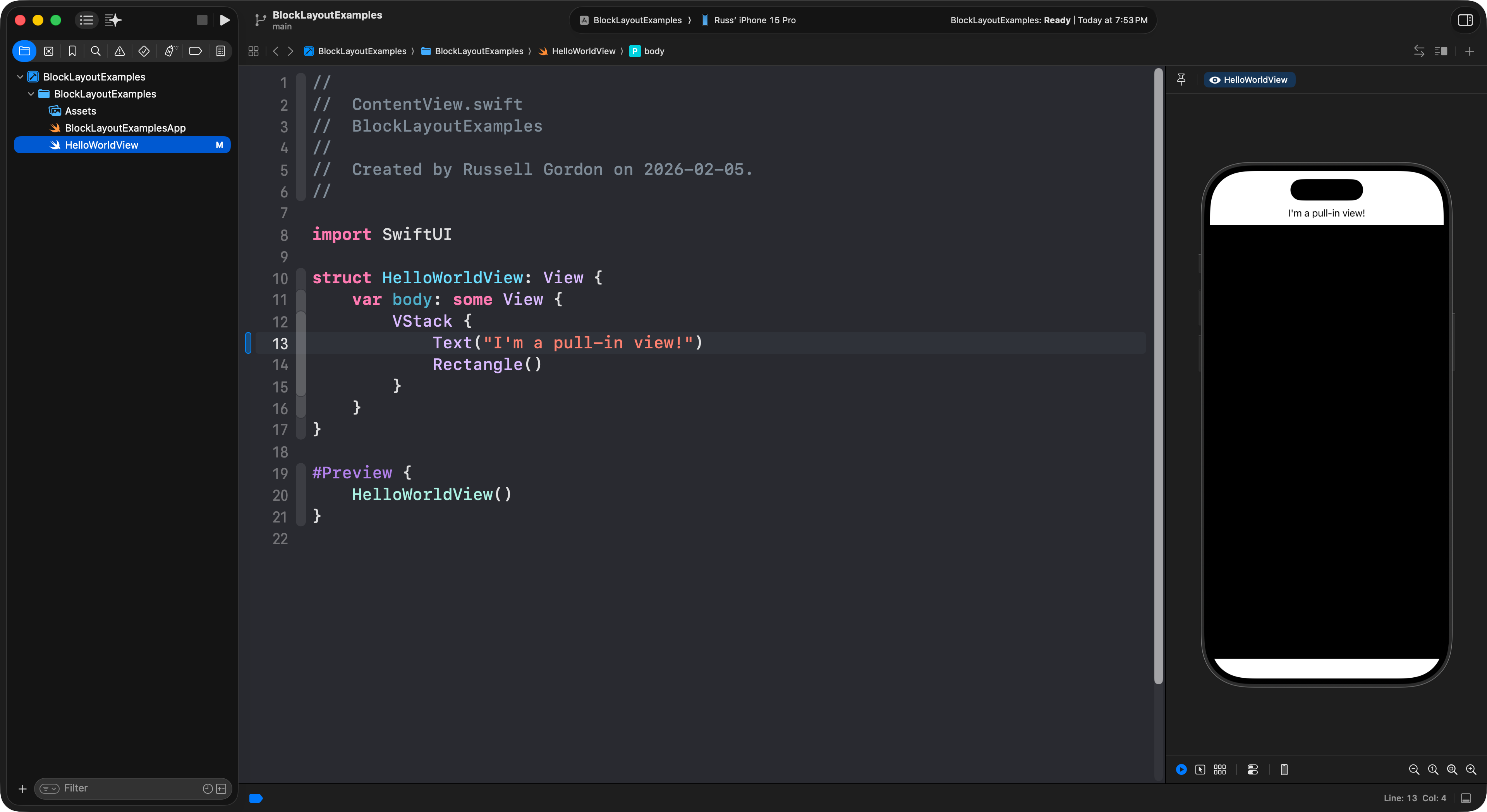
Text views are an example of “pull-in” views. These views are “polite” – they only take up as much space as they need:
If you’re ever confused about where the boundaries of a view are, add the .border() view modifier to each view:
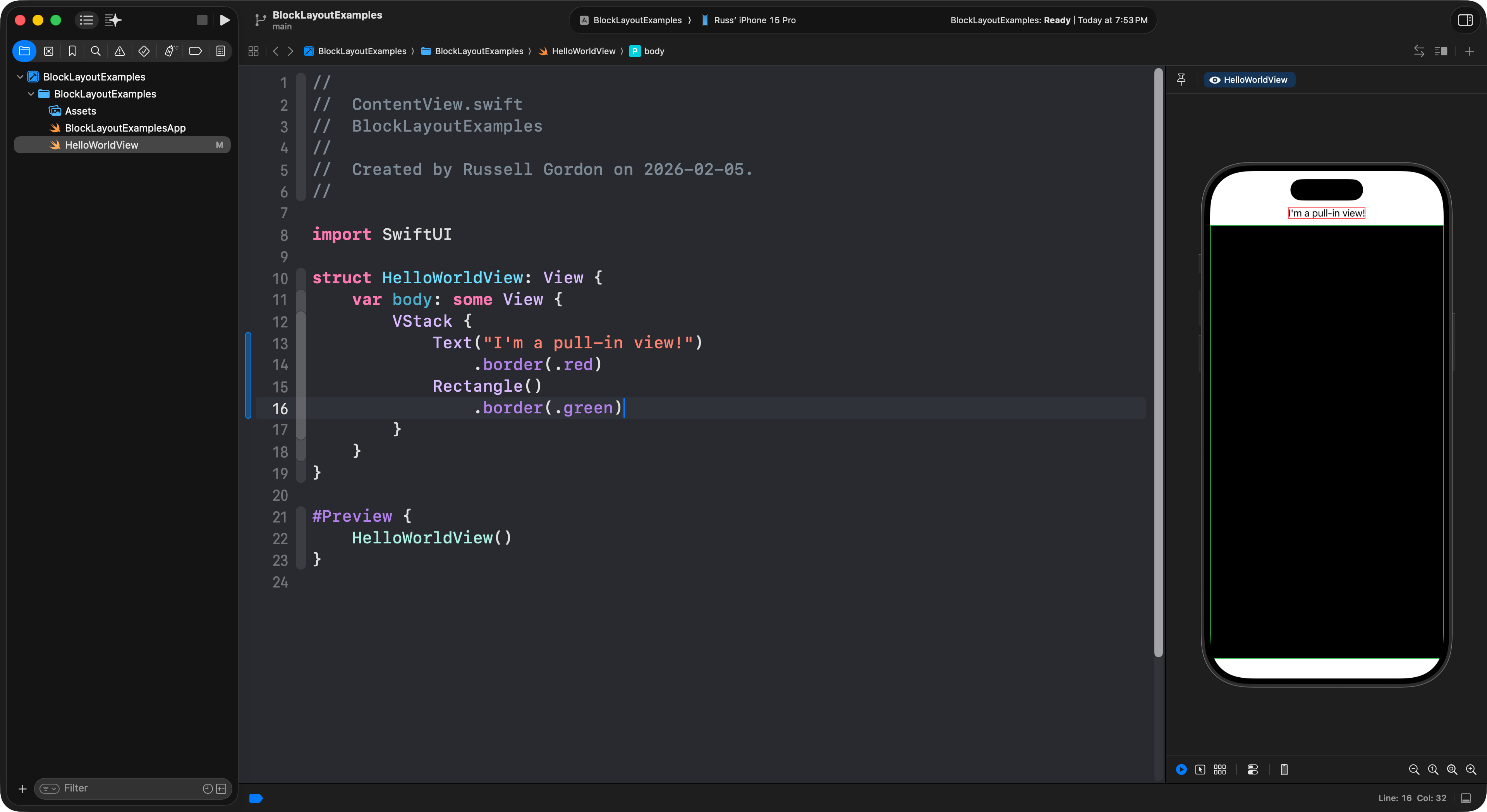
A very fine border is added to the edge of each view, making it easier to see what is happening.
Spacer
Let’s say that you wanted to place some text above the bottom rectangle, but have some negative (empty) space above and below the text.
One way you could try to do that is by using the .aspectRatio view modifier on the bottom rectangle:
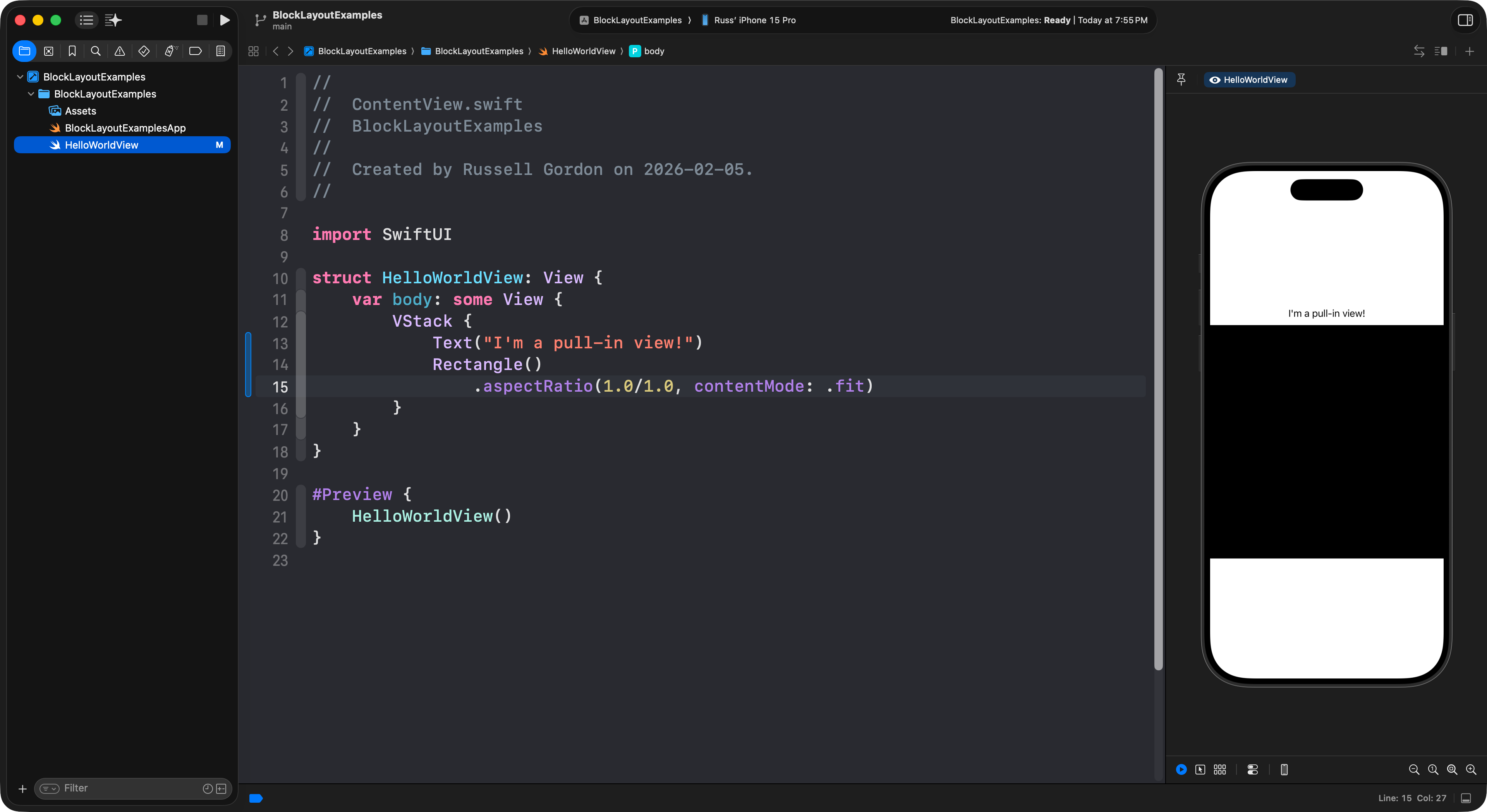
However, this is not quite right. Remember, the Text view is “pull-in”, meaning it won’t take up any more space than it needs. The rectangle is making itself square (width is same as height), and there is “leftover” space inside the vertical stack since the Text view is being polite and only taking up as much space as it needs.
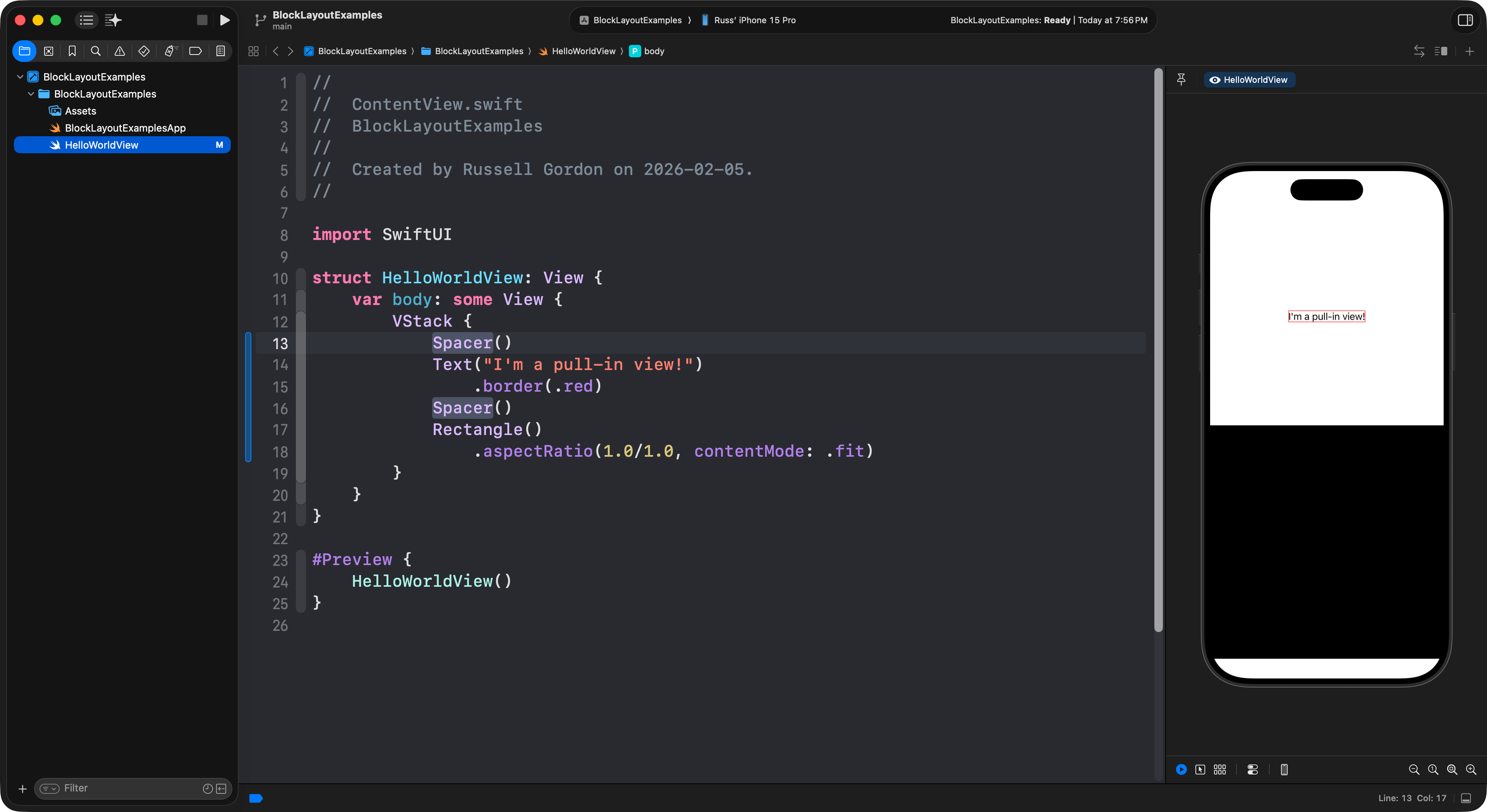
We can fix this by introducing Spacer views.
Spacer views are invisible push-out views that can “boss around” pull-in views like a text view. Have a look:
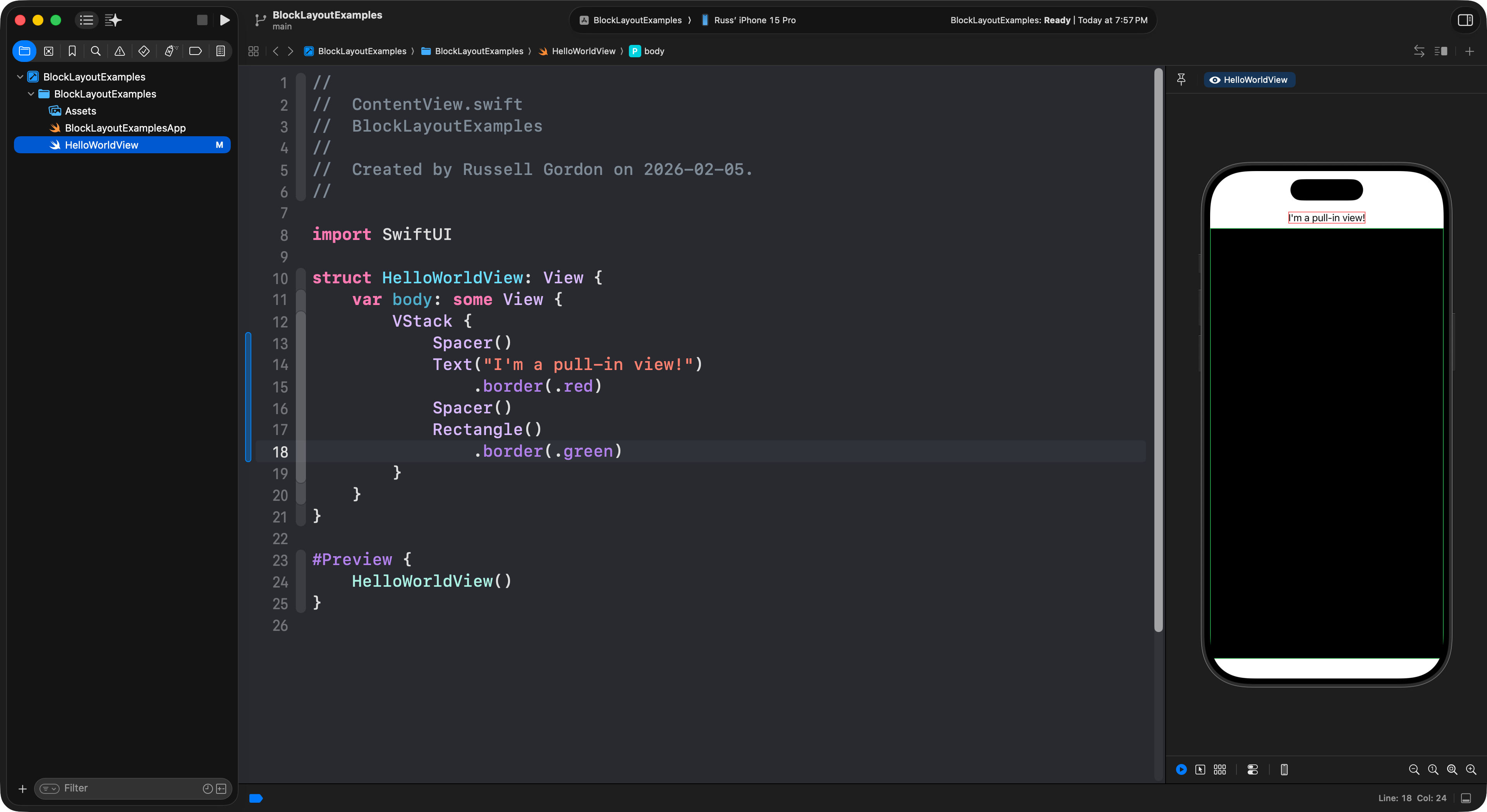
Be careful though – in a “fight” with push-out views like a Rectangle, the Spacer will lose – look what happens when we remove the .aspectRatio view modifier from the Rectangle:
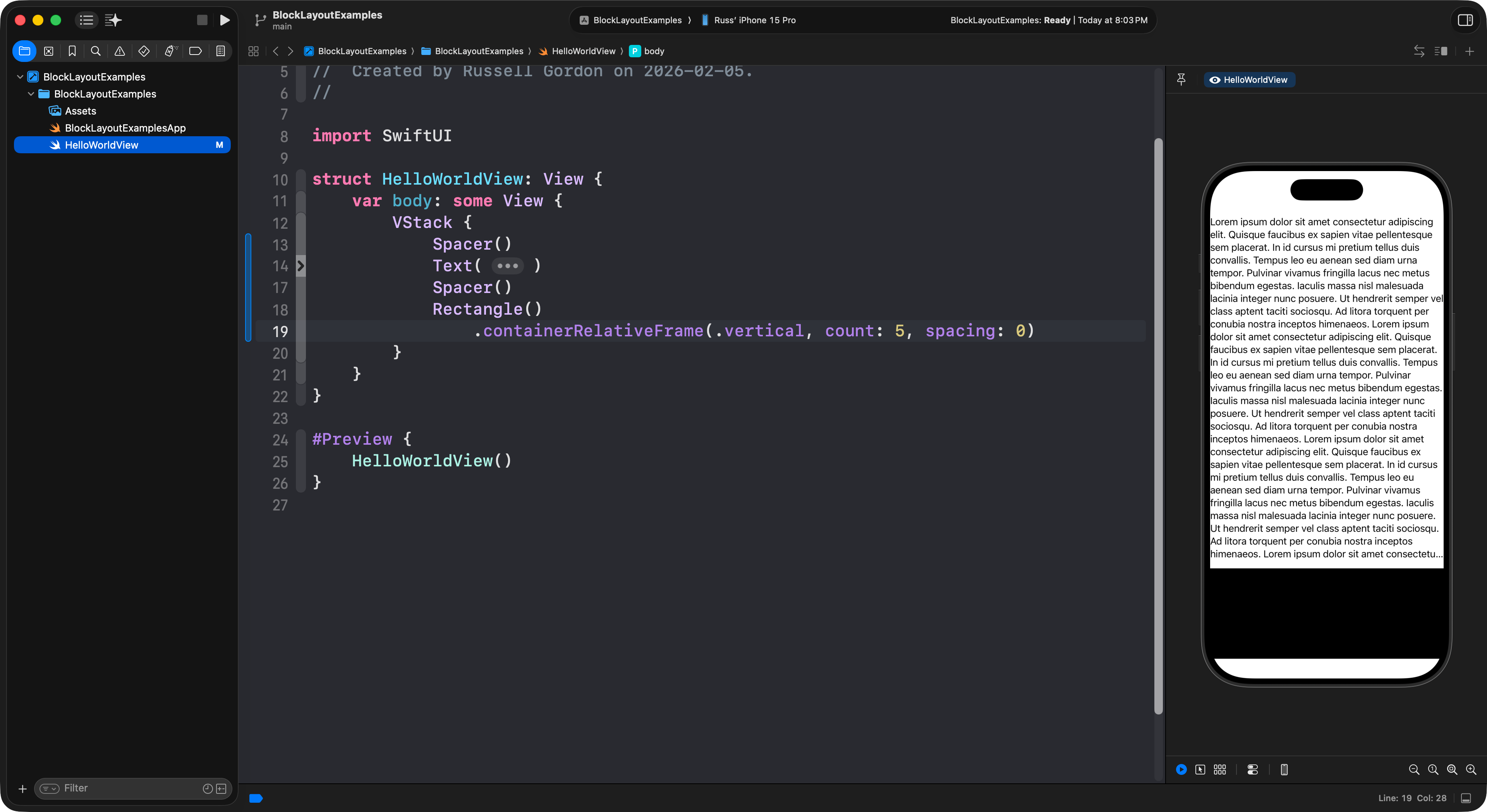
Multi-line text
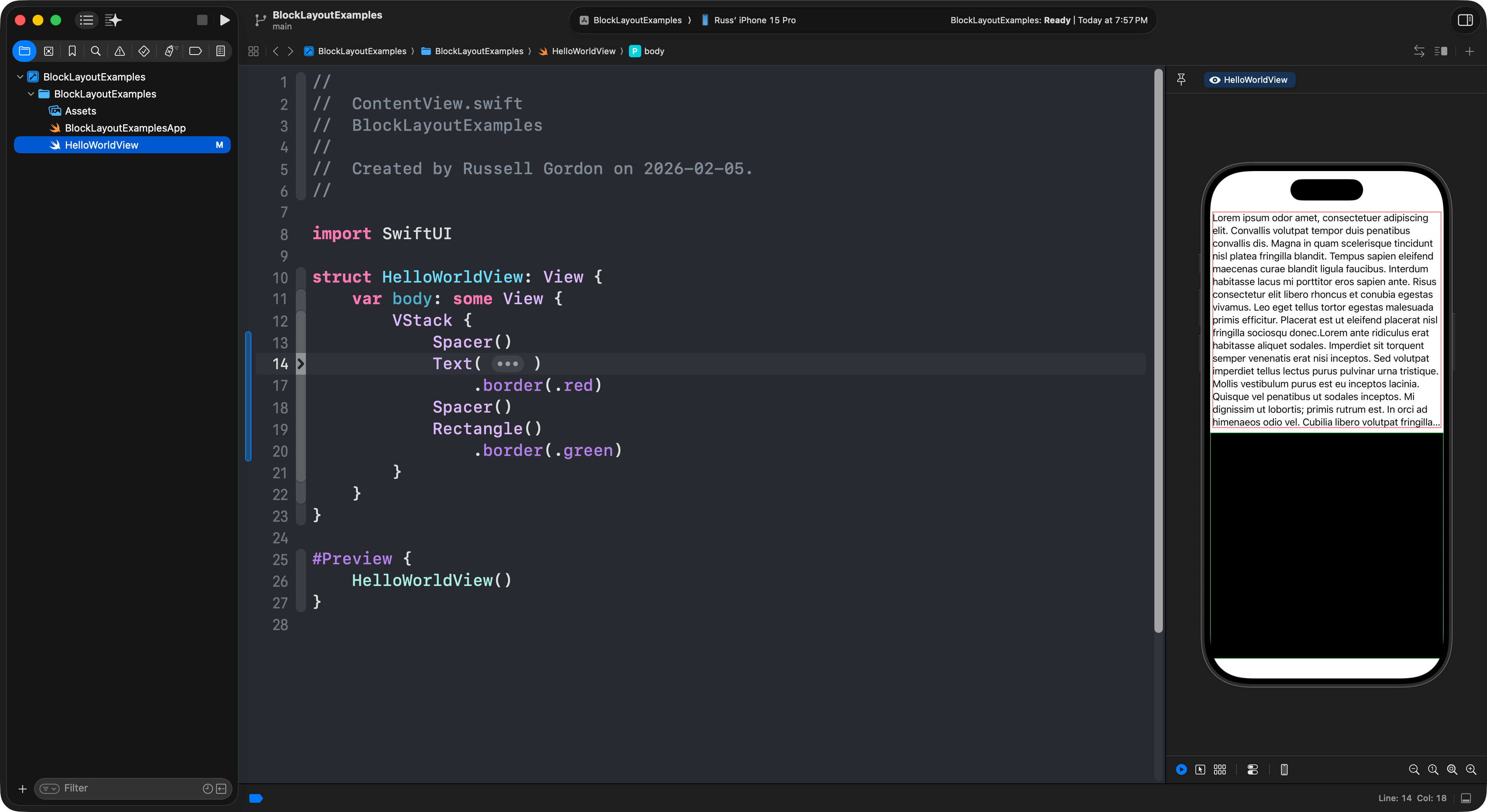
If a text view has a lot of text in it, it will push out to take as much space as it can get from the parent view.
Here is an example:
NOTE
The
Textview could use more space (if it was given that space) but it only gets half the available height from theVStack, it’s parent. TheTextview indicates that it has more text to show by adding an ellipsis, that is, three short dots:...at the end of the text it shows.
In the code window above, the Text view is folded up, using the code-folding feature in Xcode, to conceal what it contains.
It is usually easier to provide a lot of text to a Text view using a multi-line string. Multi-line strings are marked by three quotes: """ at the start and end of the string.
Here is the full code for the example shown above:
      import SwiftUI

      struct HelloWorldView: View {
          var body: some View {
              VStack {
                  Spacer()
                  Text("""
                      Lorem ipsum dolor sit amet consectetur adipiscing elit. Quisque faucibus ex sapien vitae pellentesque sem placerat. In id cursus mi pretium tellus duis convallis. Tempus leo eu aenean sed diam urna tempor. Pulvinar vivamus fringilla lacus nec metus bibendum egestas. Iaculis massa nisl malesuada lacinia integer nunc posuere. Ut hendrerit semper vel class aptent taciti sociosqu. Ad litora torquent per conubia nostra inceptos himenaeos. Lorem ipsum dolor sit amet consectetur adipiscing elit. Quisque faucibus ex sapien vitae pellentesque sem placerat. In id cursus mi pretium tellus duis convallis. Tempus leo eu aenean sed diam urna tempor. Pulvinar vivamus fringilla lacus nec metus bibendum egestas. Iaculis massa nisl malesuada lacinia integer nunc posuere. Ut hendrerit semper vel class aptent taciti sociosqu. Ad litora torquent per conubia nostra inceptos himenaeos. Lorem ipsum dolor sit amet consectetur adipiscing elit. Quisque faucibus ex sapien vitae pellentesque sem placerat. In id cursus mi pretium tellus duis convallis. Tempus leo eu aenean sed diam urna tempor. Pulvinar vivamus fringilla lacus nec metus bibendum egestas. Iaculis massa nisl malesuada lacinia integer nunc posuere. Ut hendrerit semper vel class aptent taciti sociosqu. Ad litora torquent per conubia nostra inceptos himenaeos. Lorem ipsum dolor sit amet consectetur adipiscing elit. Quisque faucibus ex sapien vitae pellentesque sem placerat. In id cursus mi pretium tellus duis convallis. Tempus leo eu aenean sed diam urna tempor. Pulvinar vivamus fringilla lacus nec metus bibendum egestas. Iaculis massa nisl malesuada lacinia integer nunc posuere. Ut hendrerit semper vel class aptent taciti sociosqu. Ad litora torquent per conubia nostra inceptos himenaeos.
                      """)
                  Spacer()
                  Rectangle()
                      .containerRelativeFrame(.vertical, count: 5, spacing: 0)
              }
          }
      }

      #Preview {
          HelloWorldView()
      }
Styling Text
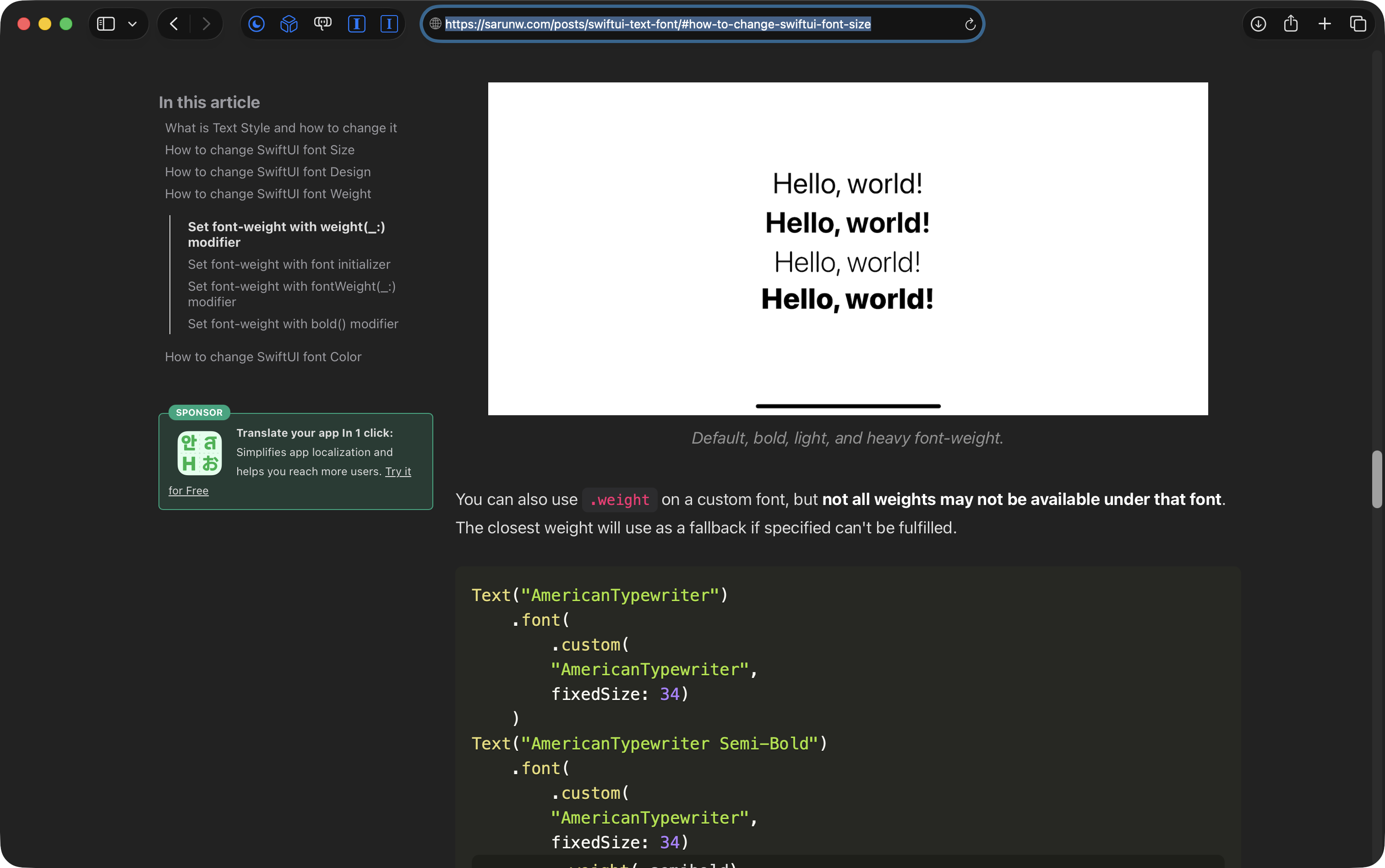
There are many view modifiers that can be used to control the size of text.
Here are some examples.
TIP
Be sure to look at the examples given above – they are really useful:
Exercises
Use the new concepts introduced here to reproduce as many of these layouts as you can – challenge yourself with some tricky ones as you get more comfortable!
TIP
You can continue working in the Xcode project you made for the original Block Layouts exercise.
No need to create a new project!